Attention: Here be dragons
This is the latest
(unstable) version of this documentation, which may document features
not available in or compatible with released stable versions of Godot.
Checking the stable version of the documentation...
Visual Studio Code
참고
이 문서는 Visual Studio Code를 C# 또는 GDScript 편집기로 사용하는 것이 아니라 게임 엔진에 기여하기 위한 것입니다. 외부 편집기에서 C# 또는 GDScript를 코딩하려면 외부 편집기 구성을 위한 C# 가이드 또는 :ref:`외부 텍스트 편집기 사용에 대한 GDScript 가이드 <doc_external_editor>`를 참조하세요.
`Visual Studio Code <https://code.visualstudio.com>`_는 `Microsoft <https://microsoft.com>`_(:ref:`doc_configuring_an_ide_vs`와 혼동하지 마세요)의 무료 크로스 플랫폼 코드 편집기입니다.
프로젝트 가져오기
C/C++ 확장이 설치되어 있는지 확인하세요. `공식 문서 <https://code.visualstudio.com/docs/languages/cpp>`_에서 지침을 확인할 수 있습니다. 또는 `clangd <https://open-vsx.org/extension/llvm-vs-code-extensions/vscode-clangd>`_을 대신 사용할 수도 있습니다.
clangd 확장을 사용하는 경우 ``scons compiledb=yes``를 실행하세요.
Visual Studio Code의 메인 화면에서 **파일 > 폴더 열기...**를 사용하여 Godot 루트 폴더를 엽니다.
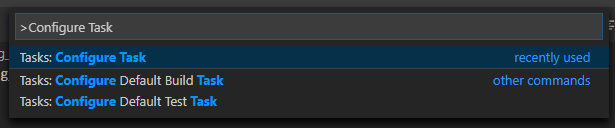
만들기 jobs.json file from template 옵션을 선택합니다.

그런 다음 **기타**를 선택합니다.
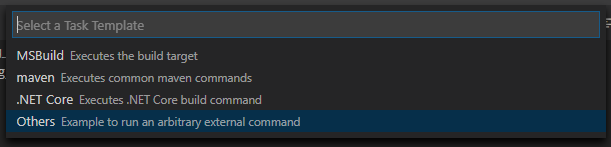
사용 가능한 **만들기 jobs.json file from template**과 같은 옵션이 없는 경우 파일이 이미 폴더에 있으면 삭제하거나
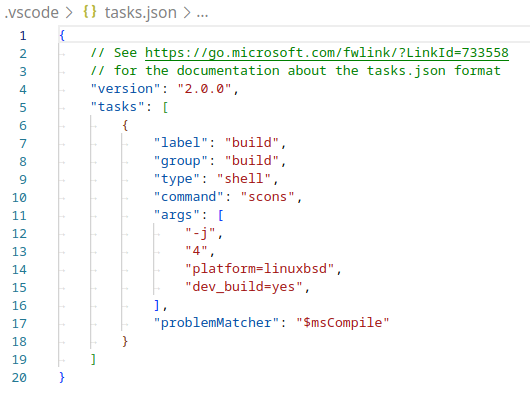
.vscode/tasks.json파일을 수동으로 생성하세요. 작업에 대한 자세한 내용은 `Visual Studio Code의 작업 <https://code.visualstudio.com/docs/editor/tasks#_custom-tasks>`_을 참조하세요.tasks.json파일 내에서"tasks"배열을 찾아 여기에 새 섹션을 추가합니다..vscode/tasks.json{ "label": "build", "group": "build", "type": "shell", "command": "scons", "args": [ // enable for debugging with breakpoints "dev_build=yes", ], "problemMatcher": "$msCompile" }
godot의 UI 시스템이 어떻게 작동하는지 알아보려면 :doc:'ui_introduction_to_the_ui_system'를 먼저 읽어보세요.
프로젝트 준비하기
프로젝트를 실행하고 디버그하려면 launch.json 파일에 새 구성을 생성해야 합니다.
:kbd:`Ctrl + Shift + D`를 눌러 실행 패널을 엽니다.
launch.json파일이 누락된 경우 새 파일을 생성하라는 메시지가 표시됩니다.
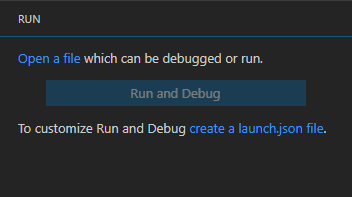
**C++(GDB/LLDB)**를 선택합니다. 여기에는 또 다른 플랫폼별 옵션이 있을 수 있습니다. 선택한 경우 그에 따라 제공된 구성 예를 조정합니다.
launch.json파일 내에서"configurations"배열을 찾아 여기에 새 섹션을 추가합니다.
{
  "name": "Launch Project",
  "type": "lldb",
  "request": "launch",
  // Change to godot.linuxbsd.editor.dev.x86_64.llvm for llvm-based builds.
  "program": "${workspaceFolder}/bin/godot.linuxbsd.editor.dev.x86_64",
  // Change the arguments below for the project you want to test with.
  // To run the project instead of editing it, remove the "--editor" argument.
  "args": [ "--editor", "--path", "path-to-your-godot-project-folder" ],
  "stopAtEntry": false,
  "cwd": "${workspaceFolder}",
  "environment": [],
  "externalConsole": false,
  "preLaunchTask": "build"
}
{
  "name": "Launch Project",
  "type": "cppdbg",
  "request": "launch",
  // Change to godot.linuxbsd.editor.dev.x86_64.llvm for llvm-based builds.
  "program": "${workspaceFolder}/bin/godot.linuxbsd.editor.dev.x86_64",
  // Change the arguments below for the project you want to test with.
  // To run the project instead of editing it, remove the "--editor" argument.
  "args": [ "--editor", "--path", "path-to-your-godot-project-folder" ],
  "stopAtEntry": false,
  "cwd": "${workspaceFolder}",
  "environment": [],
  "externalConsole": false,
  "setupCommands":
  [
    {
      "description": "Enable pretty-printing for gdb",
      "text": "-enable-pretty-printing",
      "ignoreFailures": true
    },
    {
        "description": "Load custom pretty-printers for Godot types.",
        "text": "source ${workspaceRoot}/misc/utility/godot_gdb_pretty_print.py"
    }
  ],
  "preLaunchTask": "build"
}
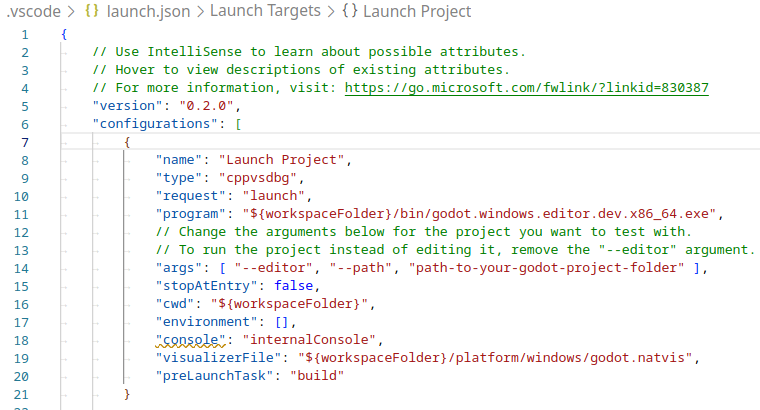
{
  "name": "Launch Project",
  "type": "cppvsdbg",
  "request": "launch",
  "program": "${workspaceFolder}/bin/godot.windows.editor.dev.x86_64.exe",
  // Change the arguments below for the project you want to test with.
  // To run the project instead of editing it, remove the "--editor" argument.
  "args": [ "--editor", "--path", "path-to-your-godot-project-folder" ],
  "stopAtEntry": false,
  "cwd": "${workspaceFolder}",
  "environment": [],
  "console": "internalConsole",
  "visualizerFile": "${workspaceFolder}/platform/windows/godot.natvis",
  "preLaunchTask": "build"
}
{
  "name": "Launch Project",
  "type": "lldb",
  "request": "launch",
  "program": "${workspaceFolder}/bin/godot.macos.editor.x86_64",
  // Change the arguments below for the project you want to test with.
  // To run the project instead of editing it, remove the "--editor" argument.
  "args": ["--editor", "--path", "path-to-your-godot-project-folder"],
  "cwd": "${workspaceFolder}",
  "preLaunchTask": "build"
}
{
  "name": "Launch Project",
  "type": "lldb",
  "request": "launch",
  "program": "${workspaceFolder}/bin/godot.macos.editor.arm64",
  // Change the arguments below for the project you want to test with.
  // To run the project instead of editing it, remove the "--editor" argument.
  "args": ["--editor", "--path", "path-to-your-godot-project-folder"],
  "cwd": "${workspaceFolder}",
  "preLaunchTask": "build"
}
참고
산발적인 성능 문제로 인해 Unix 기반 시스템에서는 GDB 대신 LLDB를 사용하는 것이 좋습니다. `lldb`를 사용하는 구성을 위해 `CodeLLDB 확장 <https://marketplace.visualstudio.com/items?itemName=vadimcn.vscode-lldb>`_이 설치되어 있는지 확인하세요.
lldb에 문제가 발생하면 gdb 사용을 고려할 수 있습니다(LinuxBSD_gdb 구성 참조).
LLVM 기반 빌드에서는 lldb가 더 잘 작동할 수 있습니다. 자세한 내용은 :ref:`doc_compiling_for_linuxbsd`를 참조하세요.
program 아래의 이름은 빌드 구성에 따라 다릅니다. target=editor 및 dev_build=yes``가 포함된 64비트 LinuxBSD 플랫폼용 ``godot.linuxbsd.editor.dev.x86_64.
Intellisense 구성하기
C/C++ 확장의 경우:
발생할 수 있는 포함 오류를 수정하려면 c_cpp_properties.json 파일에서 일부 설정을 구성해야 합니다.
먼저 일부 파일을 생성해야 하므로 프로젝트를 반드시 빌드해야 합니다.
UI 또는 텍스트를 사용하여 C/C++ 구성 파일을 편집합니다.

플랫폼에 대한 포함 경로를 추가합니다(예:
${workspaceFolder}/platform/windows).편집기 ``TOOLS_ENABLED``에 대한 정의를 추가하고, ``DEBUG_ENABLED``를 디버그하고, ``TESTS_ENABLED``를 테스트합니다.
사용 중인 컴파일러에 맞게 컴파일러 경로가 올바르게 구성되었는지 확인하십시오. 플랫폼에 대한 자세한 내용은 :ref:`doc_introduction_to_the_buildsystem`를 참조하세요.
c_cpp_properties.json파일은 Windows의 경우 다음과 유사해야 합니다..vscode/c_cpp_properties.json{ "configurations": [ { "name": "Win32", "includePath": [ "${workspaceFolder}/**", "${workspaceFolder}/platform/windows" ], "defines": [ "_DEBUG", "UNICODE", "_UNICODE", "TOOLS_ENABLED", "DEBUG_ENABLED", "TESTS_ENABLED" ], "windowsSdkVersion": "10.0.22621.0", "compilerPath": "C:/Program Files/Microsoft Visual Studio/2022/Community/VC/Tools/MSVC/14.39.33519/bin/Hostx64/x64/cl.exe", "cStandard": "c17", "cppStandard": "c++17", "intelliSenseMode": "windows-msvc-x64" } ], "version": 4 }
또는 scons 인수 ``compiledb=yes``를 사용하고 C/C++ 구성 UI의 고급 섹션에 있는 ``compileCommands``를 ``compile_commands.json``로 설정하는 컴파일 명령을 설정할 수 있습니다.
이 인수는 파일이 추가되거나 이동될 때마다 실행되어야 하므로 ``tasks.json``의 빌드 작업에 추가할 수 있습니다.
통합 클래스 참조
Mono Debug 확장 프로그램 을 설치하세요.
문서의 구조
`Godot Hover Docs 확장 <https://marketplace.visualstudio.com/items?itemName=RedMser.godot-hover-docs>`__을 설치하면 C++ 소스 또는 헤더 파일에서 기호를 가리키면 클래스 참조 문서가 표시되도록 할 수 있습니다. 정보는 로컬 XML 파일에서 제공되므로 오프라인에서 작동합니다.
참고
이는 클래스 참조 XML에 문서화된 기호, 즉 스크립팅 API에 노출된 기호에만 효과적입니다. 내부 엔진 기호는 선언 바로 위에 주석이 없는 한 마우스를 올려도 문서를 표시하지 않습니다.
문제 해결
같은 Godot 웹사이트 페이지에서 참고하세요.